Trending Cat Cutting Meme Editing in VN: Green Screen Reels Tutorial 🐱
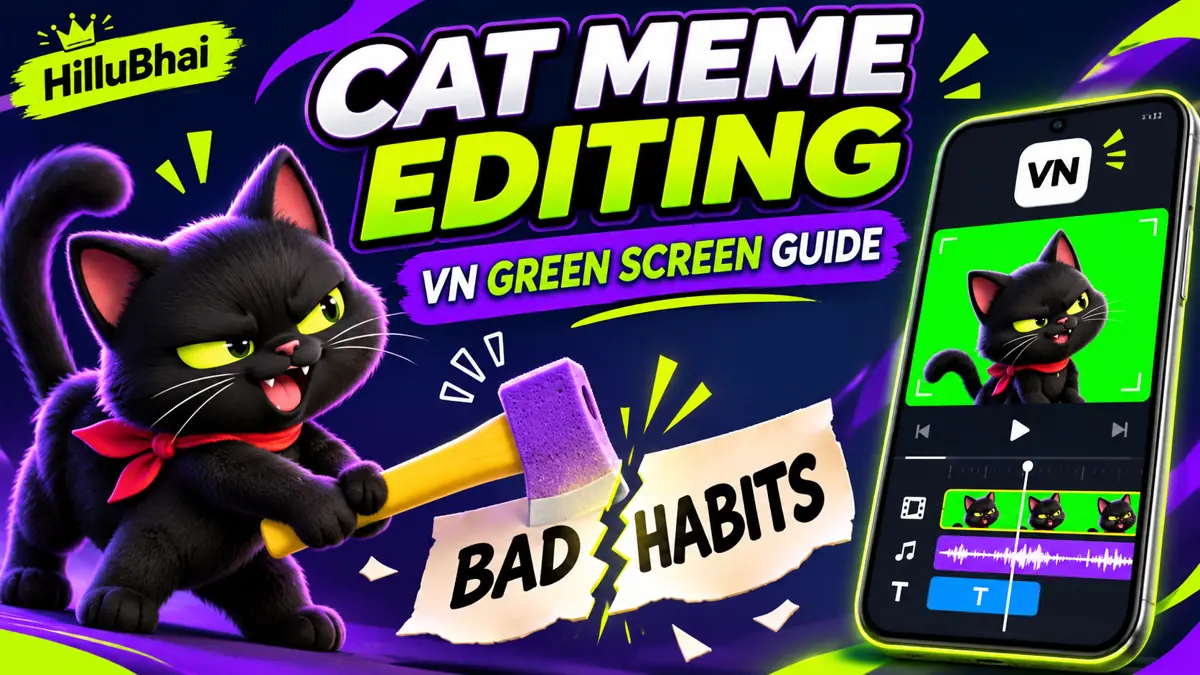
A funny cat overlay can turn an ordinary clip into a punchline, but the timing and green-screen cleanup do most of the work. This HilluBhai guide explains cat cutting meme editing in VN, from adding the animation to exporting a vertical Reel. If you also enjoy photo-based edits, our 2026 Recap VN editing guide offers another way to build a short video around your own material.
One cat, one caption, one well-timed joke
Learn a manual overlay workflow with cleaner edges, readable text and a simple sound cue. No QR code is required for these steps.
What is the cat cutting meme edit?
The format discussed by Ghaus Editz combines a black cat, a cartoon axe movement and a caption over a photo or video. The animation acts as the visual punchline. This tutorial uses harmless everyday jokes about deleting bad habits, cutting unnecessary spending or removing distractions. Keep the action directed at an imaginary problem or prop rather than depicting injury.
“Trending” describes the source topic’s name here; it is not a verified ranking or a promise of viral reach. An effective version needs a readable setup and a clear payoff, not a crowded screen or an exaggerated engagement claim.
What you need before opening VN
- A background photo or short video you own or can use.
- A cat animation with permission for your intended use, ideally with a clean green background.
- An original caption and an optional licensed sound effect.
- VN installed, enough storage for an export and the source files saved locally.
Resource status: The supplied Ghaus Editz article advertises a green-screen video download. HilluBhai has not verified the downloadable file or its redistribution terms, and no working VN QR template has been verified for this guide. Use a creator-authorized asset or your own animation; the featured illustration is not an importable template.
Step 1: Build a vertical background
Create a video project and import your background. Use the aspect-ratio control at the top of VN’s editor to select 9:16 for a vertical composition. Reposition the photo so the subject, caption and cat each have room. Avoid placing a face behind the animation or important text against a busy detail.
Trim the background to suit the joke. A short, readable sequence is a better starting point than stretching a single action across a long video. The timing example below is an original HilluBhai suggestion, not an official template duration.
Step 2: Add the cat on an overlay track
Tap Add PiP/Sticker and import the cat video above the main background. Resize and position it in the preview. Keep the full movement inside the frame, including any prop that extends beyond the cat. Trim unwanted lead-in or empty frames rather than covering them with another effect.
Step 3: Remove green with Chroma
Select the overlay and open Chroma. Sample the green background with the color picker. Raise Intensity gradually until the background disappears, then adjust Spill to reduce green traces around the subject. VN’s documentation distinguishes these controls: one governs removal strength, the other helps with color contamination at the edges.
Preview the moving clip, not just a still frame. Check the ears, outline and prop throughout the action. There is no universal percentage that works for every downloaded clip. If the cat starts disappearing, reduce the removal strength and sample a clearer area of green.
Step 4: Make the caption readable before the payoff
Try one of these original setups: “Me cutting subscriptions I forgot I had,” “Removing one distraction before exam week,” or “My budget meeting my shopping wishlist.” Use a short line with strong contrast, and leave enough time to read it before the motion lands.
| Time | Editing idea |
|---|---|
| 0–2 seconds | Show the background and setup caption. |
| 2–4 seconds | Bring in the cat and align its action with the punchline. |
| 4–6 seconds | Hold the result briefly, then end cleanly. |
Step 5: Align sound and simplify the finish
If you use a sound cue, place its main hit at the visible action rather than at the start of the file. Zoom into the timeline for finer alignment. Preview once with sound and once muted: the joke should remain understandable either way. Keep a quiet background track beneath the main cue, and remove competing audio where necessary.
Step 6: Export and check the saved file
VN’s Auto export mode is a sensible starting point. Use Manual when you need specific settings; choose resolution and frame rate appropriate to the source. A 1080p export suits many vertical projects, but exporting a blurry clip at 4K does not restore missing detail. Keep the app in the foreground with the screen unlocked until export finishes.
Watch the saved video before uploading. Check text placement, the final frame and audio alignment. Platform controls can cover parts of a vertical video, so keep the main joke away from the outer edges and inspect the posting preview.
Quick fixes for common problems
| Problem | Try this |
|---|---|
| Green border remains | Resample the background and adjust Spill gradually. |
| Parts of the cat vanish | Reduce Intensity and inspect the moving outline. |
| The punchline feels late | Shorten the setup or move the overlay earlier. |
| Export looks soft | Check the original asset before increasing export resolution. |
Do I need a VN code?
No. This is a manual PiP-and-Chroma tutorial. A genuine template code would need to open a specific creator’s project; none is supplied or invented here. Preserve creator credits on any third-party material you use, and publish with audio and images you have permission to share.
Topic discovery credit: Ghaus Editz, “Trending Cat Cutting Meme Editing,” November 24, 2026. Tool instructions checked against VN’s official Help Center guides for Chroma, PiP, basic editing and export. Tutorial text, practice timing and caption examples: HilluBhai. Featured artwork: original AI-generated editorial illustration, not a VN screenshot or downloadable meme clip.


1 comment