Aura Farming AI Reel Editing: Create a Confident Cinematic Sequence
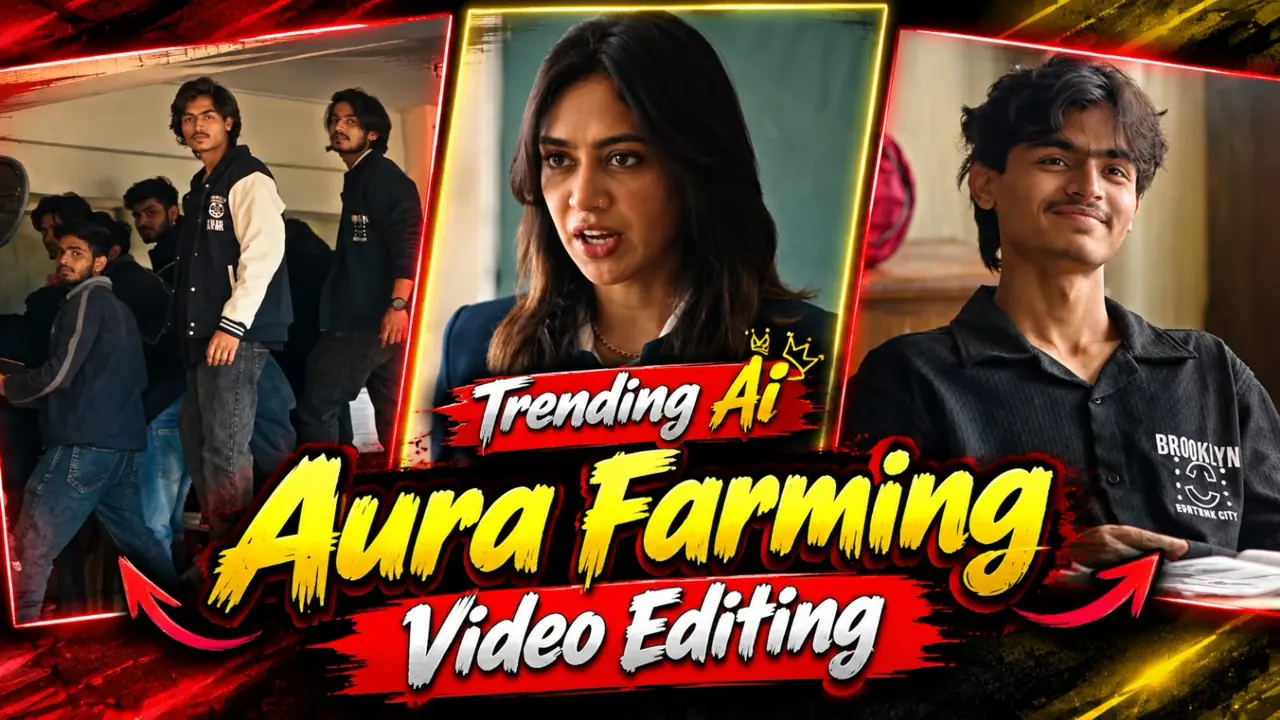
Aura Farming AI Reel Editing is the starting point for this original HilluBhai editing walkthrough. Explore our VN Reels editing guide for related ideas, then follow the practical creative plan below to give your own footage a clear story.
Template code availability
This is an AI editing tutorial. The source does not supply a VN template QR code for this effect. Use the original prompt and manual workflow below; there is no downloadable VN project attached to this guide.
Plan the pictures first, then choose the effects. The suggestions below are a creative workflow, not a claim that one template guarantees viral reach.
Define confidence through composition
An aura-style edit can communicate confidence through posture, light and pacing rather than a pile of effects. Choose one visual idea: a calm walk, a strong silhouette or a deliberate turn toward the camera. Give the subject room in the frame so the movement remains easy to read.
Use an original starting image
Begin with your own photograph or an image you have permission to adapt. If someone else is recognisable, obtain their agreement before making an identity-based edit. Keep the pose plausible and avoid inventing endorsements, public appearances or claims that a generated scene really happened.
Write a restrained motion prompt
Try: An adult subject walking calmly toward the camera on a quiet urban street, subtle jacket movement, slow cinematic camera retreat, consistent face and clothing, realistic lighting, no extra people, no text. Change the setting and wardrobe details to match your starting image.
Check continuity frame by frame
AI video can change hands, clothing details or facial features during movement. Review the beginning, middle and end, then play the clip normally. If the identity changes, shorten the shot or generate a simpler action. Do not rely on a tiny phone preview alone to hide a visible error.
Edit for a controlled build
Start calmly and place the most striking shot after a short setup. Use a simple cut when the energy changes. Too many flashes can undermine the confident mood. Let sound and image work together while preserving enough space for the subject to remain the centre of attention.
Disclose the generated element
Describe AI-created footage clearly in the caption when it could be mistaken for an actual recording. Keep a copy of the original image and project so you can revise the sequence later. A convincing edit should still be honest about how it was made.
Choose a workflow before editing
For an AI edit, use an image or video tool available to you and follow its current controls. Feature names and availability vary. The example prompt above is an original creative starting point, not an official preset or a promise of identical results. Save a still-image fallback in case a generated motion clip introduces distracting changes.
Prepare and import your media
Keep your selected originals in one folder and remove accidental duplicates. Open a regular project for a manual edit, or use VN’s template import controls for a legitimate creator-supplied file. Follow the prompts shown in your version. Preview every replacement rather than assuming the first crop is correct. Preserve the original files so that a mistaken edit does not become your only copy.
Export a short test first
Use 1080p as a practical starting point when your source material supports it. For a typical photo sequence, 30 fps is a reasonable first test; match moving footage appropriately instead of choosing a higher number automatically. Check the rendered video in your gallery for sharpness, audio timing, black edges and clipped captions. A higher export resolution cannot restore detail absent from the source.
Post with the right permissions
Use photographs and audio that you are entitled to publish. A template does not automatically grant every music licence or permission to repost another person’s image. Credit the actual template creator where required. Add music through the platform’s available library only when its terms fit your intended use. Keep the editable project alongside the final render so you can correct an error without rebuilding the entire sequence.
Keep a record of the creative choices
Save the prompt, starting image and version of the generated clip you actually use. If a later render changes the face or wardrobe, this record helps you return to the better result. Build the sequence from a few short reliable shots instead of one long unstable scene. For a walking shot, check the feet touching the ground and the shadows moving consistently. If those details fail, use a closer framing or a still image with a modest camera move. The strongest version is the one whose movement supports the mood without distracting errors.
Final review checklist
| Check | What to look for |
|---|---|
| Framing | Important details stay visible from beginning to end. |
| Timing | Images and text remain readable at normal speed. |
| Export | The saved video matches your intended shape and sound. |
Topic reference and preview image: Ghaus Editz. Preview rights remain with their respective owners. This HilluBhai tutorial is independently written; the image is a source preview, not proof of a tested template. Reference title: Trending AURA Farming Reels Editing Tutorial | Instagram Viral Ai Video Editing – Ghaus Editz. No third-party branding has been removed.


Post Comment