How to Edit an Anime Reaction GIF Through ChatGPT: Prompts, Examples & Easy Steps
Want to edit an anime reaction GIF through ChatGPT? Start by deciding whether you want to change the artwork, add a caption or rebuild the animation. ChatGPT can help with image edits and planning; a frame-based GIF editor gives you direct control over playback and export when those controls are not available in your chat.
A memorable reaction is usually easy to read: surprise in the eyes, a slow blink, a delighted smile or a perfectly timed deadpan look. More movement does not automatically make it funnier. A clear pose, a short pause and a clean loop often matter more than a complicated background.
This guide uses original anime-style artwork and focuses on a reliable workflow you can adapt to the tools in your account. The four examples below illustrate expression choices. They are separate still concepts, not a finished frame-matched animation or screenshots from an existing anime.
Can ChatGPT edit an animated GIF directly?
ChatGPT’s image tools support generating and editing artwork with reference images. Availability depends on your plan and workspace settings. Do not assume that a successful still-image edit also changes every frame, preserves the original timing or returns an animated file.
OpenAI separately documents animated GIF generation and editing through supported Image API models. That API capability is not a promise that the same controls are exposed in every ChatGPT conversation. For a beginner, preparing or revising still frames and finishing the loop in a GIF editor is a practical route.
| Your goal | Useful ChatGPT task | What to verify afterward |
|---|---|---|
| Add a caption | Suggest short, readable wording | Caption position and timing in the GIF editor |
| Change the expression | Edit a selected still or reference image | Character identity and neighboring frames |
| Replace a background | Revise an image while preserving the subject | Consistent edges and color across the loop |
| Build a new reaction | Plan poses and generate concept frames | Frame alignment, delays and actual animation export |
How to edit an anime reaction GIF through ChatGPT: step by step
1. Decide what should change
Write one clear goal before opening your editing tools. “Make the character look surprised” is easier to evaluate than “make it more viral.” Specify the expression, crop, background and caption separately. If you only need a caption, keep the existing animation intact and add the text in your GIF editor rather than regenerating the artwork.
2. Prepare a useful reference
Use your own artwork or material you have permission to edit. For an existing GIF, use a GIF editor’s frame extraction feature to save representative frames as PNG images. Keep an untouched copy of the original animation and record its frame order and timing. Upload selected stills when you want visual feedback on specific moments.
Choose a frame where the face is clear. A blurred transition frame can be a poor identity reference. If there are several characters, identify which one should change and which parts of the scene must remain fixed.
3. Request a focused artwork edit
Attach the reference image and state both the change and the details to preserve. A useful prompt names the character’s hair, clothing, pose, crop and background. Ask for one change at a time so you can tell whether the edit improved the result.
Edit the attached original anime portrait. Change only the expression to surprised: wider eyes, raised eyebrows and a small open mouth. Preserve the teal bob haircut, cream hoodie, head position, camera angle, lavender background and square canvas. Do not add text or new objects.
4. Review before requesting more frames
Compare the revised image with the reference. Look at the hairline, eye spacing, hoodie neckline and outline thickness. If these drift, correct them before generating additional expressions. Otherwise each new version may move farther from your starting design.
Keep a clearly named master reference. When requesting a new pose, attach that master again and describe the intended change. This gives the next request a stronger anchor than relying on a vague instruction such as “same character as before.”
5. Plan a short reaction sequence
For a simple reaction, try an anticipation pose, the main expression and a return toward the starting pose. You may need additional in-between drawings for a smooth result. Three unrelated portraits will behave like a slideshow, even when exported as an animated file.
Ask ChatGPT for a frame plan before requesting images. Decide where to hold the funniest expression and where a quick transition is enough. A return pose can soften the visible jump when the loop restarts.
Four anime reaction image examples
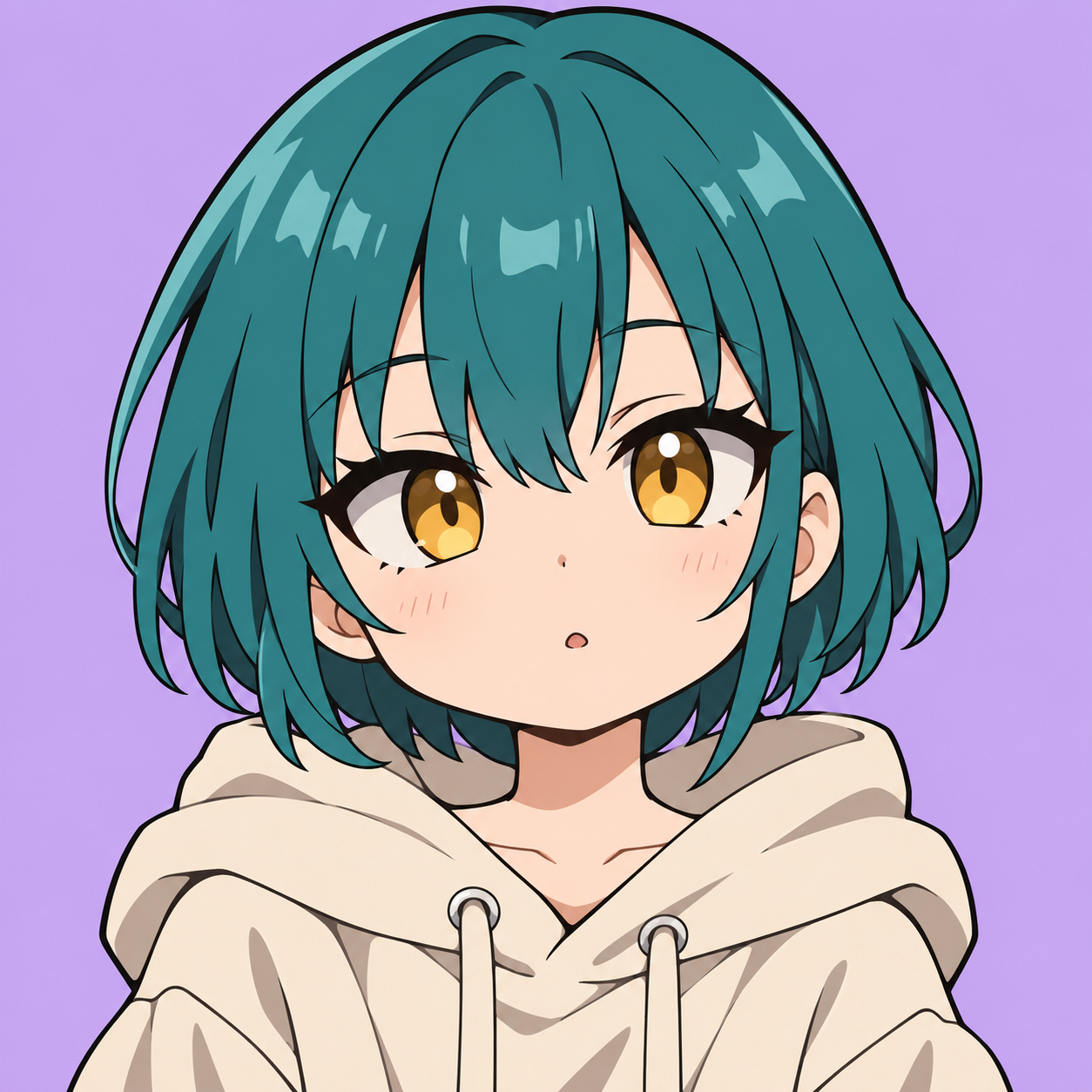
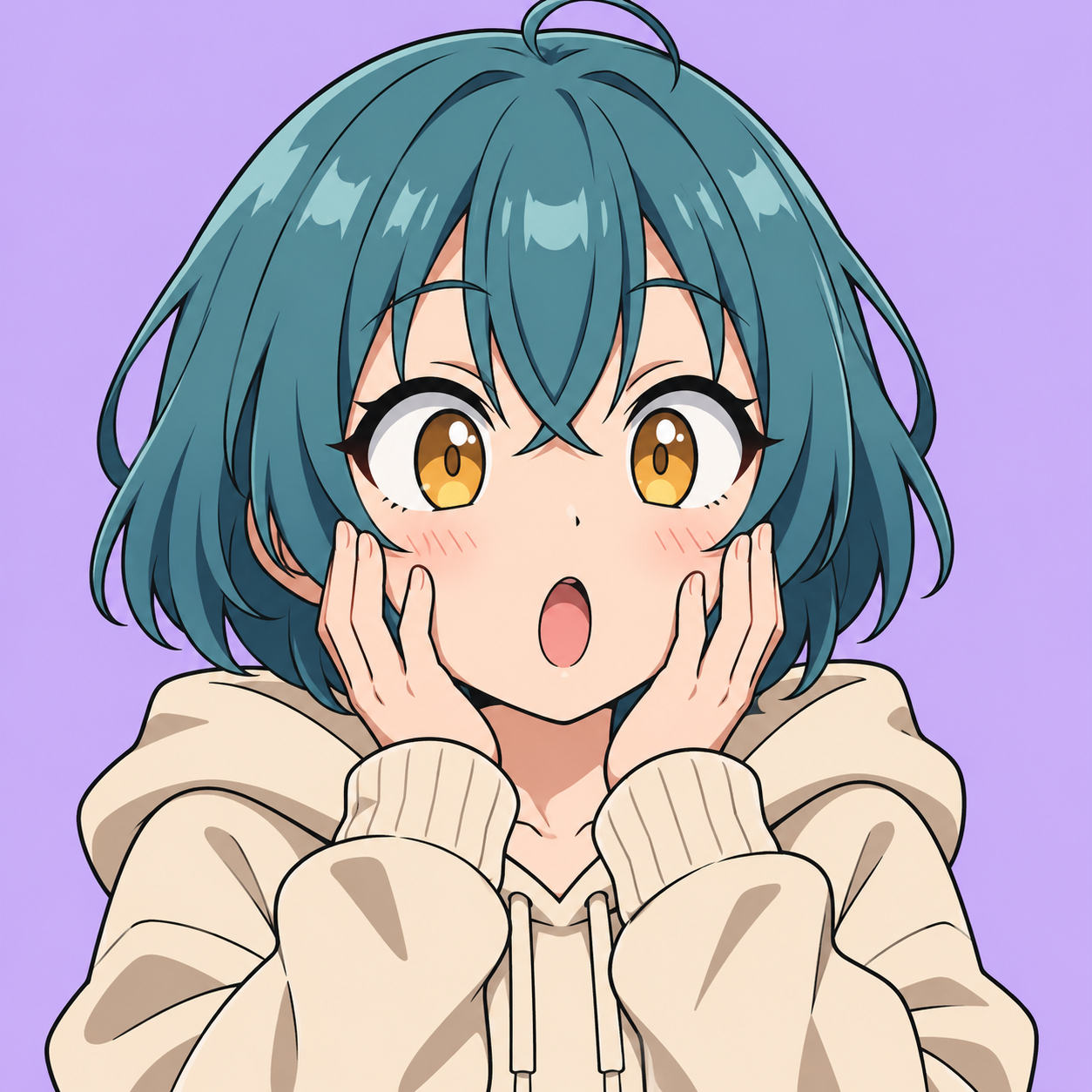
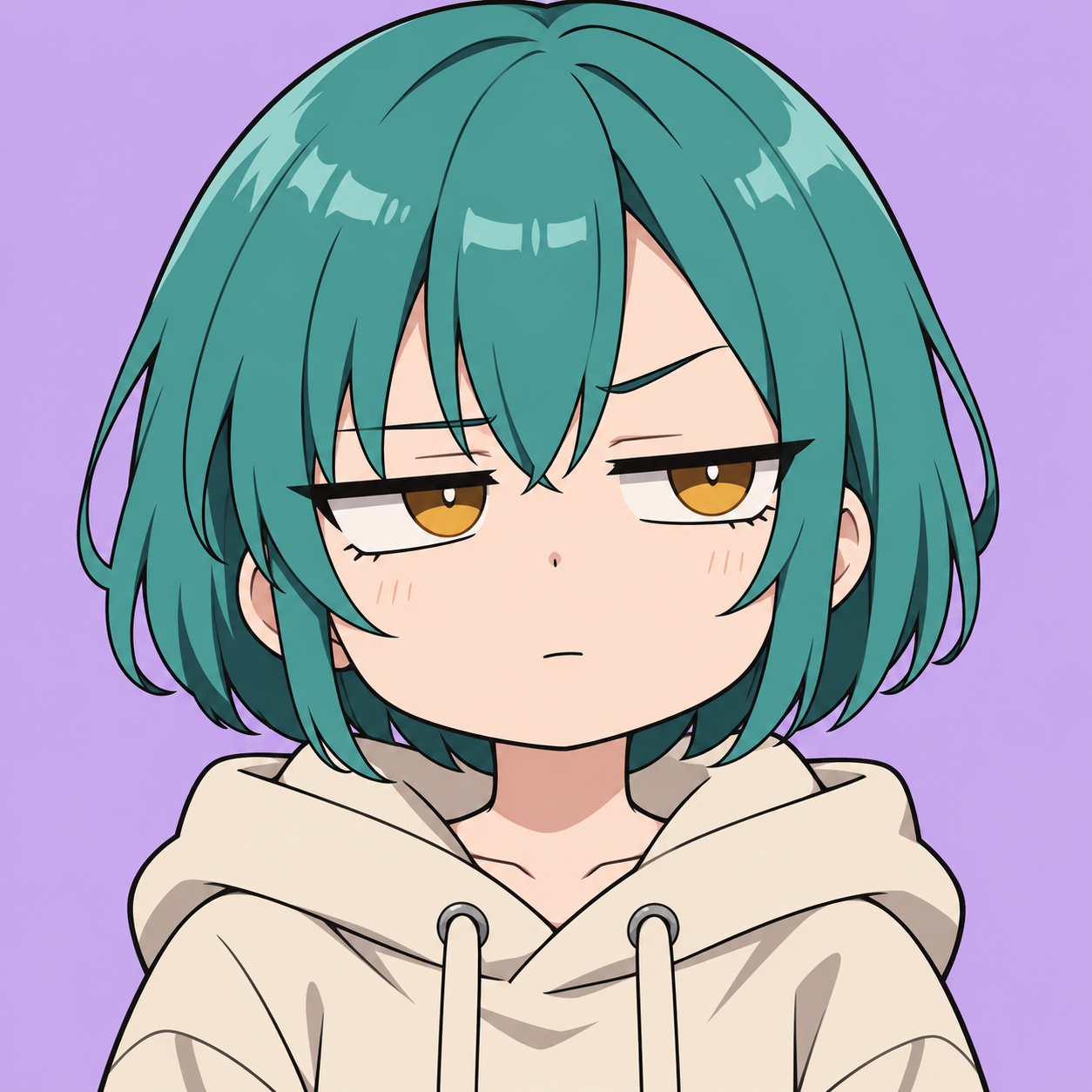
These original AI-generated concepts share a teal-hair and cream-hoodie brief. Their framing and details vary, so use them to compare expressions rather than treating them as production-ready consecutive frames.

Example 1: neutral or curious
A quiet starting expression gives the later reaction contrast. Keep the face readable and avoid filling the background with details that compete with the eyes. A neutral pose is also useful as an identity reference.
Example 2: surprised
Wider eyes and a small open mouth communicate surprise quickly. If you include hands near the cheeks, inspect the fingers and their position carefully. For a small chat reaction, a simpler face-only version may be easier to read.
Example 3: delighted
Closed smiling eyes, lifted cheeks and a broad smile create a cheerful reaction. Small sparkle accents can reinforce the mood, but changing their positions randomly between frames can cause flicker. Keep them consistent or animate them deliberately.
Example 4: unimpressed
Half-lidded eyes and a restrained mouth work well for a dry reaction. This expression often benefits from a longer hold. The timing should let the viewer register the look before the loop begins again.
Copyable ChatGPT prompts for better GIF edits
Prompt for a consistent sequence
Use the attached master image as the identity reference. Plan a short reaction loop: neutral, anticipation, surprised, recovery and neutral. Keep the canvas size, head scale, camera position, hair silhouette, clothing and background fixed. Describe each frame first. Tell me which in-between drawings are needed before generating artwork.
Prompt for changing only the background
Replace only the background with a flat muted lavender. Preserve the subject’s exact pose, facial expression, hair, clothing, outlines and crop. Keep the edges clean. Do not introduce lighting changes or extra objects.
Prompt for caption ideas
Suggest 10 original reaction captions, each 2–5 words long, for a surprised anime expression. Use friendly everyday humor. Avoid copying dialogue from a show. Put the strongest three first.
Prompt for a timing plan
I have five frames for a neutral-to-surprised reaction. Suggest an editable timing plan in milliseconds with a short anticipation and a longer hold on the surprised expression. Keep the full loop around two seconds. Treat these as starting values I should preview and adjust.
These prompts are starting points, not guarantees of perfect character consistency. Save versions and compare the result with your reference after every substantial change.
Assemble the edited frames into a real GIF
Use a GIF maker with frame ordering and per-frame delay controls, or a desktop editor that supports animation. For example, GIMP documents GIF animation export from multiple layers. Online tools such as EZGIF provide a frame-based maker. Interface labels can change, so use the current tool’s help if a control differs.
- Prepare all approved frames on the same canvas dimensions. Align the head and shoulders so the character does not jump unexpectedly.
- Import the frames into your animation editor and place them in playback order. Preserve a copy of the original timings if you are modifying an existing GIF.
- Set delays for the anticipation, reaction hold and recovery. Check the tool’s units: milliseconds and hundredths of a second are different.
- Preview the loop repeatedly. Watch the last-to-first transition as carefully as the main reaction.
- Export as an animated GIF with your chosen repeat setting. Reopen the exported file to confirm its movement, crop and duration.
| Part of a five-pose test | Example delay | Purpose |
|---|---|---|
| Neutral | 300 ms | Establish the starting look |
| Anticipation | 100 ms | Prepare the change |
| Surprised hold | 800 ms | Let the reaction register |
| Recovery | 200 ms | Ease back |
| Return to neutral | 600 ms | Settle before repeating |
This adds up to a two-second test loop. It is an editorial starting point, not a required setting or a guarantee of smooth motion. Add or redraw in-between frames if the expression changes too abruptly.
Keep the file practical to share
Begin with a modest square export, such as 480 × 480 pixels, and inspect it at the size where people will view it. Reduce excessive empty space and unnecessary frames before sacrificing important facial detail. Check the destination’s current upload limits rather than assuming one file size works everywhere.
A plain background is helpful for small reactions. If colors become grainy after export, compare palette and dithering options in your GIF editor. Transparent edges may need extra cleanup. Repeatedly enlarging a small source does not restore missing drawing detail.
Common problems and how to fix them
- The face changes between frames: return to one master reference and reduce the requested changes.
- The head jumps: align the crop, scale and anchor position on every frame before export.
- The result is a still image: confirm that you exported an animation and that the file contains multiple frames.
- The loop snaps at the end: add a recovery pose or revise the first and last frames.
- The caption is difficult to read: shorten it and use a solid contrasting text treatment in the final editor.
- The animation is too fast: check delay units and extend the main expression hold.
Frequently asked questions
Can I upload a GIF and expect every frame to be edited?
Do not assume that from a preview alone. Confirm the tools available in your conversation and inspect the downloaded output. For precise control, extract frames, make targeted edits and reassemble the animation.
Are the four images above animated GIFs?
No. They are static concept examples showing expression choices. They are not a frame-perfect animation sequence.
Can ChatGPT create an anime-style character from scratch?
Image generation can be used to create original illustrated characters. Describe the character clearly and keep a reference for later edits. The result may still need consistency checks.
Do I need to use a famous anime character?
No. An original character gives you room to develop a recognizable reaction style. If you use someone else’s artwork or clips, make sure you have the appropriate permission for your intended use.
Should I add the caption during image generation?
For a reusable reaction, keeping artwork and caption separate makes later changes easier. You can ask ChatGPT for wording, then place the final text in your animation editor.
Continue your editing projects
If you also make short photo videos, explore our VN photo reel template guide and Instagram Reels VN code tutorial. GIF reactions and reels use different export formats, but both benefit from a clear visual idea and careful timing.
Sources and image notes
Official OpenAI documentation: ChatGPT image generation and editing and Image API guide, including supported GIF output. Animation references: GIMP export documentation and EZGIF maker. Guidance checked November 11, 2026. All four examples and the thumbnail are original AI-generated illustrations, not official ChatGPT interface screenshots. Product capabilities and account access can change.


Post Comment