Jogiyo Ke Pichhe VN Code: Ishq Di Gali Photo Reel Template & Editing Guide
Turn a favourite portrait into a romantic photo edit with the Jogiyo Ke Pichhe VN template. Find the shared code below, save the complete image and follow the import guide. This HilluBhai article explains the workflow and offers practical ways to improve your photo selection, crop and final preview.
The edit is associated with the “Ishq Di Gali” theme featured in the linked Ghaus Editz post. Rather than rebuilding an entire sequence yourself, a compatible VN template can provide a starting structure. Your choice of photograph still matters: an expressive, sharply focused portrait usually gives you more room to work than a compressed screenshot.
Jogiyo Ke Pichhe VN Code
Save the full code image, including its white border and creator information. Then import it using VN’s scanner.
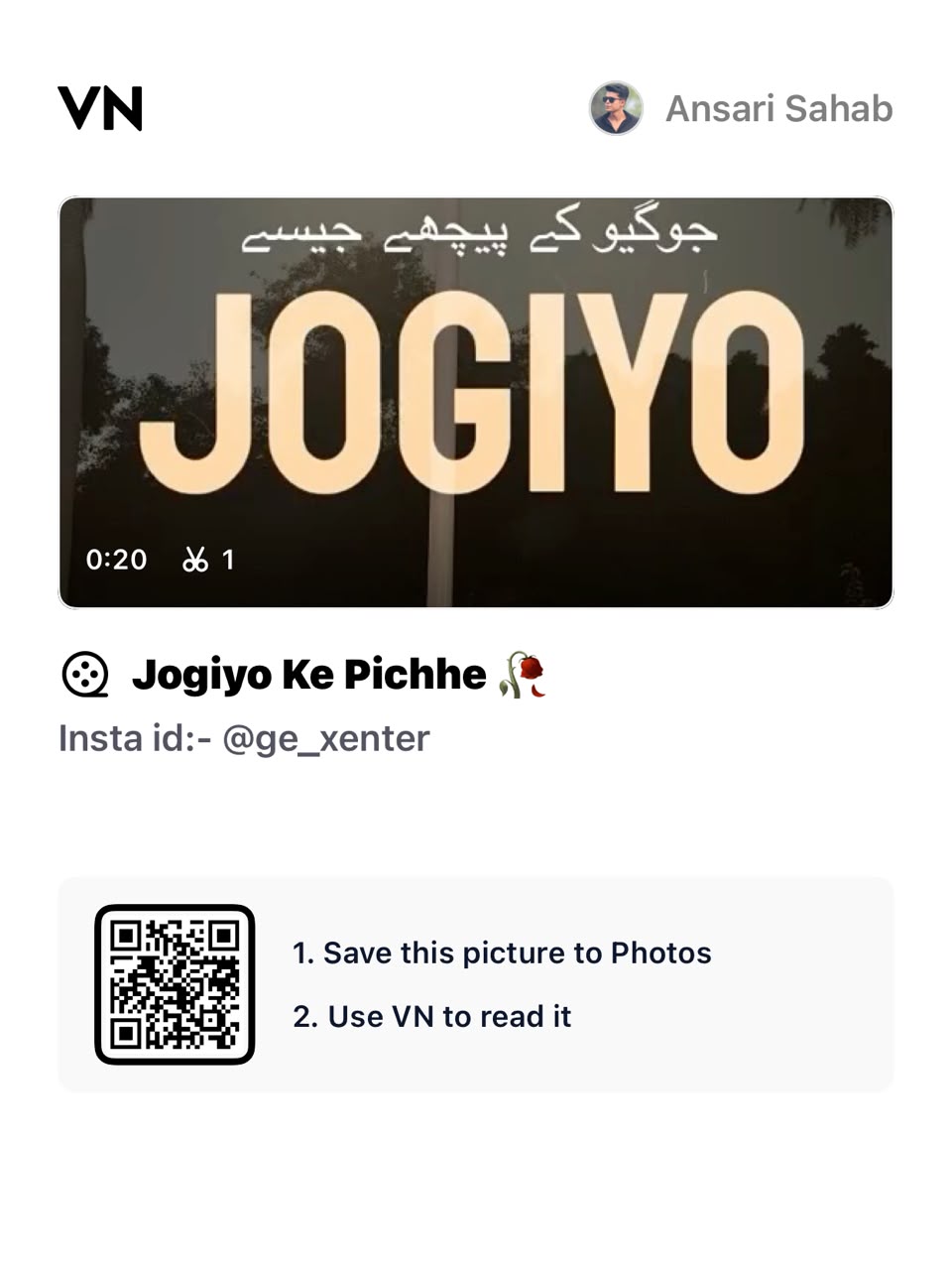
Template credit shown on the shared card: Ansari Sahab • Instagram @ge_xenter. Image sourced from the linked Ghaus Editz article; creator credits have been preserved.
Open Full-Size VN CodeOpen the image, then use your browser’s Save Image option. This button opens the code picture, not a separate project file.
Template details at a glance
| Item | Information |
|---|---|
| Template label | Jogiyo Ke Pichhe |
| Editing app | VN Video Editor |
| Access method | Shared VN code image |
| Duration shown on source card | 0:20 |
| Creator shown | Ansari Sahab / @ge_xenter |
| Media requirements | Confirm the requested slots after opening in VN |
How to use the VN template code
VN’s own template guide describes importing a saved code, downloading the template and using it with replacement media. The exact appearance of these controls may vary with your app version.
- Save the image: keep the complete code picture in your phone’s gallery.
- Open VN: choose its Scan control and select the saved picture from your gallery.
- Review the template: when it loads, check the preview and tap Download, then Use.
- Add your media: fill the requested photo or video slots and continue to the editing screen.
- Preview and export: adjust the available controls, watch the entire sequence and export when satisfied.
Choose a photo that works with the edit
Start with an original image that has a clear subject and enough space around the face. A photograph that looks good as a square profile picture may need a different crop in a vertical video. Keep a second option ready so you can compare the results without repeatedly searching your gallery.
Look at the background as well as the person. A bright sign or cluttered corner can pull attention away from the expression you want viewers to notice. You do not need an elaborate location: a simple wall, soft outdoor light or a tidy room can provide a useful starting point.
Give the finished reel a careful preview
Watch once for framing and once for timing. In the first pass, check whether a zoom cuts off the eyes or forehead. In the second, listen for moments where the visual change feels late or abrupt. Make adjustments only where the imported template allows them.
A restrained edit can be more readable than one with extra stickers covering every corner. If you add a caption, leave enough breathing room around the face and the template’s existing text. Keep important details away from the edges where social app controls may cover them.
A practical export checklist
For a vertical reel, 9:16 is a useful starting canvas. If your project and device offer 1080 × 1920 export, try a short test and inspect it on your phone before making the final version. Keep the frame rate consistent with your source footage rather than assuming a higher number will repair a blurry image.
- Check the first and last frames for an unwanted blank screen.
- Confirm that text is readable on a small display.
- Listen through the exported file, not only the editing preview.
- Keep your original photo and project until the upload is complete.
VN code not opening? Check these points
Use the full-resolution image rather than a cropped thumbnail. If the scan succeeds but the project does not download, the linked resource may no longer be available. Visit the original source for an updated code. Repeatedly saving a smaller screenshot will not restore a creator’s removed file.
If the result looks different from an example, compare the input photo, crop and editable settings first. The featured image on this page is original AI-created tutorial artwork; it is not a preview exported from the actual template.
Frequently asked questions
Is this template made by HilluBhai?
No. The shared code card credits Ansari Sahab and @ge_xenter. HilluBhai provides this guide and the original featured artwork.
Does the thumbnail contain the VN code?
No. Use the separate code image above. The thumbnail is a visual cover for this article.
Does using the template guarantee a viral reel?
No. Choose a clear opening, make an edit you enjoy and share it with an appropriate audience. A template does not guarantee views or engagement.
Can I use the music commercially?
Check the music and template permissions for your intended use. Access to a shared project is not itself a licence to every included asset.
More VN editing ideas
Explore HilluBhai’s Instagram Reels VN template guide for another editing starting point.


Post Comment